



How to Organize Coffee Shop Inventory and Storage with TidyBox QR Labels
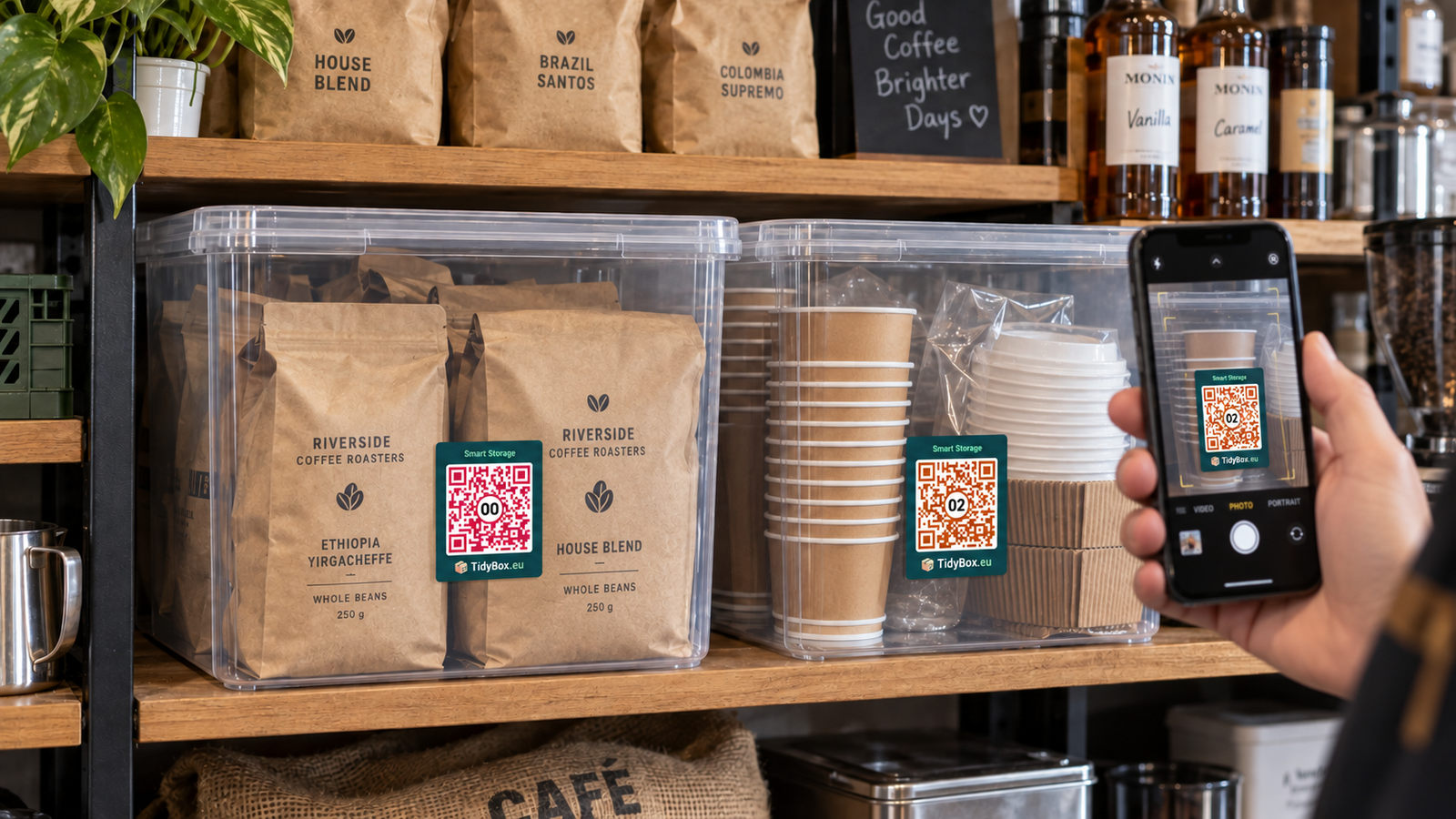
The morning rush has started, and the counter is out of takeaway lids. Nobody knows where the spare box is. Coffee shop inventory becomes useful when any team member can answer: what do we have, and where is it?
TidyBox connects boxes, containers and shelves to digital item lists through QR labels. Scan, photograph the contents or describe them by voice, review the AI suggestions and save. Later, search for a product and check its location. Everything opens in a phone browser, without a separate app or spreadsheet.
Give every supply a clear storage place
Start with the way your team uses supplies. Define a few practical storage areas:
- Coffee and dry ingredients: sealed bean bags, tea, cocoa and sugar.
- Syrups and extras: spare bottles, sauces and seasonal ingredients, stored according to their packaging.
- Takeaway packaging: cups, matching lids, napkins, bags and carriers.
- Refrigerated stock: products that need chilling, in their designated places.
- Cleaning and maintenance: a separate area for cleaning products, brushes and spare supplies, away from food.
- Seasonal supplies: festive packaging, decorations and occasional equipment.
Start with a collection named “Coffee shop — Central.” It links labels through a shared search. Assign locations such as “Storeroom — Rack B — Shelf 2” to tell staff where to look.
A label can represent a box, container or shelf. Avoid counting the same bottles in both a shelf record and a box on that shelf. Separate collections can divide stock and staff access between shops. See the collections guide.
Label shelves and boxes, then create lists from photos or voice
Prepare a linked set of labels, either printed yourself or bought ready to use. Put each code on a flat, accessible surface. A label on the side of a stacked box is easier to reach than one underneath another carton.
Set up your first storage record:
- Scan the label. Open its page in your phone browser.
- Name the box or shelf. Try “250 ml cups — reserve stock,” then assign its location.
- Photograph or dictate the contents. For photos, make packaging visible and photograph small text separately. For voice input, say the product names, quantities and pack sizes.
- Review the AI list. AI recognises products in photos or turns your spoken description into an item list. Check names, sizes, pack formats and quantities before saving.
- Save and test the search. Look for one product using the name your team would normally use.
Try dictating: “Six one-litre bottles of vanilla syrup, four packs of 50 paper cups and two packs of V60 02 filters.” AI creates the list for you to review and save.
Use specific names: “Paper cups 250 ml — pack of 50” or “Black lids 80 mm — pack of 100.” Record the number of packs so staff can distinguish similar supplies.
Photos and searchable names serve different purposes. A photo helps someone recognise the packaging. A saved item name makes the product searchable. Keeping only a photo does not automatically make every product in it available to text search.
Remember which coffee you poured into the container
You try different coffees, pour the beans into a container and forget the name by the time they run out. You would buy that coffee again — if you could remember it.
The owner of the home-office coffee setup pictured here uses TidyBox for exactly this. Whenever he refills a labelled container, he scans its QR code and photographs the coffee bag. AI helps identify the coffee; he can check the result against the photo and save it. Another scan later brings back the name and packaging.
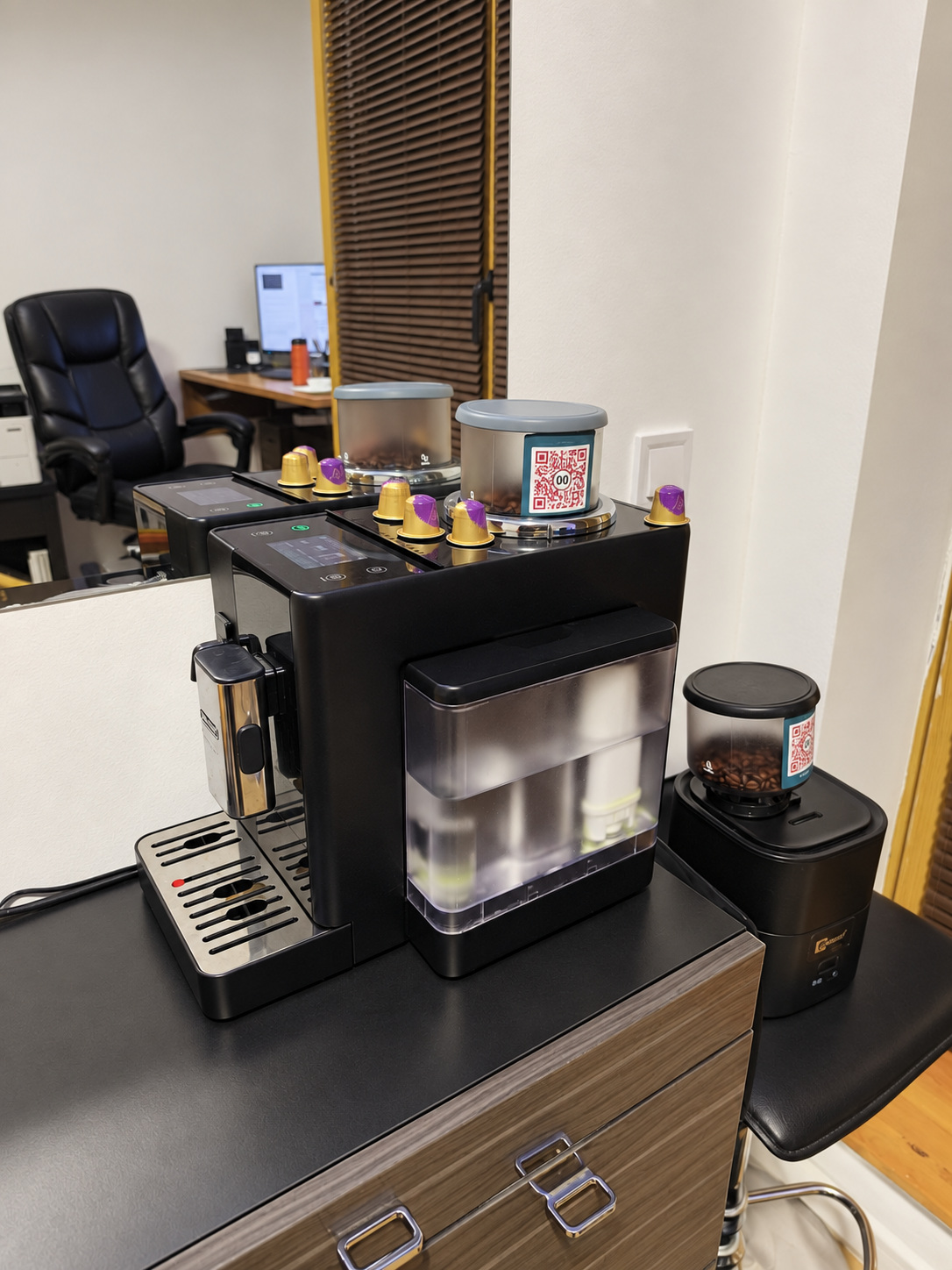
A photograph from a TidyBox user's home office.
In a coffee shop, the same habit helps the next shift check which beans are in a container or grinder hopper. Photograph the named packaging, not just the beans, and update the record when changing coffees.
Position refrigerator labels carefully
Choose the label material for its storage environment. Ready-made TidyBox paper packs suit dry boxes. For water-resistant labels, generate TidyBox QR codes, download the layout and print it on suitable self-adhesive vinyl compatible with your printer. Choose material and a printing method suited to the moisture and temperature involved, then test the finished label in place.
A refrigerator record can also have its code on a suitable dry exterior surface, clearly identifying the area it represents. Keep original product labels visible.
Find supplies and update quantities when stock moves
A new barista needs 80 mm lids. They open an accessible box in the collection, search for “lids 80 mm” and open the matching record. The saved name, photo and assigned location help them identify the right stock without scanning every box.
Agree on consistent names across shifts. “Vanilla syrup 1 litre” is more useful than “vanilla”; “V60 02 paper filters” is more precise than “filters.” Use a simple pattern: product, distinguishing detail, pack size.
Choose a counting unit that matches the task. Sealed coffee bags, syrup bottles and cup packs work well for reserve stock. Recording six one-litre bottles is easier than tracking every pump of syrup during service.
For example, a reserve box contains six bottles of vanilla syrup. A colleague takes two to the bar and changes the reserve quantity to four. If bar stock has its own record, they update that too. When the last reserve bottle is used, they remove the item from the current contents and tell the person responsible for ordering that replenishment is needed.
Scanning opens the record; a person makes the changes. Update the location when a whole box moves. When products move between boxes, update both lists.
Keep dates visible and check stock before ordering
Identical products may come from different batches. If their package dates differ, record them as separate items while keeping the same basic product name. For example: “Vanilla syrup 1 litre — batch A — package date 15 Dec 2026.” This is an illustrative record; copy the actual information from each package.
Where needed, add an opening date as text in the item name. This is a note entered by your team, not automatic expiry tracking. Check which type of date the manufacturer provides and follow its storage and after-opening instructions. The AI inventory does not replace that check.
Position suitable stock with the nearest applicable date so staff use it first. Check packaging during receiving and your normal stock checks. Do not rely on delivery order alone: a later delivery may have an earlier date.
Before placing an order, the manager reviews relevant records and checks important items against physical stock. If the shop aims to keep four sealed bags of coffee and only two remain, someone decides what to order based on expected demand and incoming deliveries. The minimum is a team rule, and the ordering decision remains with a person.
Include seasonal supplies in this check. Before ordering festive cups, search for existing stock and assess its quantity and condition. Visibility helps the team notice supplies already on hand.
Give each shift the right access
An unclaimed label is open to people who scan it. For the shop's working inventory, claim the collection with the responsible person's account and choose private access. Claiming one box in an unowned collection claims the whole collection.
Invite colleagues according to their responsibilities:
- View access for people who need to find supplies and check contents.
- Item and location editing for people who receive deliveries, issue stock and move boxes.
Invitees use their own accounts. Each shift needs someone who can update records, even if other colleagues only need viewing rights. The access guide explains the setup.
Add a short check to the shift handover: have deliveries been recorded, issued packs reflected and moved boxes updated? Remove access when someone leaves the team. The shared inventory stays useful when everyone knows who updates it and when.
Start with one shelf
Choose a small area such as reserve cups, lids and filters. These are easy to distinguish and count.
- Name the storage places and attach labels.
- Photograph or dictate the contents, review the AI lists and save.
- Assign locations and give a colleague access.
- Ask them to find five specific products without verbal directions.
- Issue a few packs, update quantities and check the records against the shelf.
If searching is difficult, improve the names. If quantities drift, agree on when updates happen. Then extend the same routine to coffee, syrups, refrigerators and seasonal boxes.
Does the team need an app?
No. TidyBox opens in a phone browser. Viewing and editing require an internet connection. Staff need accounts to accept invitations to a private collection.
Does selling a drink automatically deduct ingredients?
In this workflow, staff update stock manually. It supports finding supplies and recording storage contents; sales-based ingredient deductions and automatic purchasing are not part of the setup described here.
What is the first step?
Create an account, print QR labels or choose a ready-made set in the TidyBox shop. Set up one shelf and let the next shift find a product through search.